

Short answer
Put a QR code on an RSVP card by generating a code that links directly to your RSVP page, then placing it on the card design. Test it before printing.
Putting a QR code on an RSVP card is straightforward. First, create a QR code that links directly to your online RSVP page, not your whole wedding website. That way guests go straight to the form. You can make the code with a free generator or your wedding website service.
Then open your RSVP card design. Place the code in a clear spot, usually the top or bottom. Add a short instruction like "Scan to RSVP" or "RSVP online". Keep the code away from the edges where it might get cut off, and away from any perforation lines if the card is tear off.
Make sure the RSVP page is mobile friendly. Most guests will scan with their phone. Include a deadline on the card so guests know when to respond. If some guests prefer not to scan, you can still include a web address or a phone number as a backup. Test the code on a printed sample before you order the final cards. A code that does not work is frustrating for everyone.
People also search
- rsvp card with qr code
- qr code wedding rsvp cards
- wedding invitation rsvp card with qr code
From us
Website packages · Wedding print Wedding websiteWedding Website£499 one-offYour full wedding website with RSVP for every event, meal choices and a private link for each household.See Wedding Website →
 Wedding websiteE-Invite£149 one-offOne beautiful page with the details, a map and a family RSVP, sent by link, QR code or WhatsApp.See E-Invite →
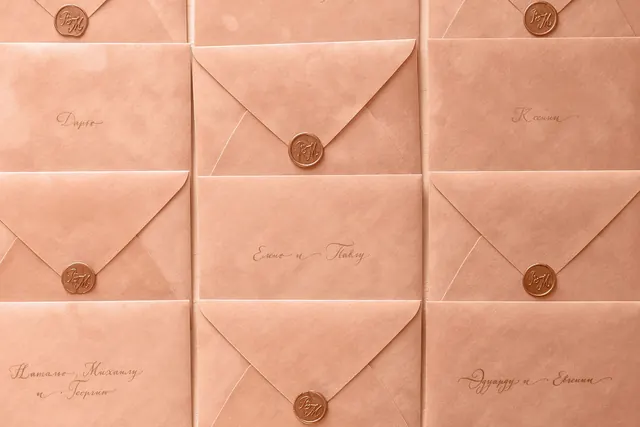 Wedding printPrinted wedding invitationsfrom £36.28Printed invitations and save the dates on quality card, with a QR code that opens your wedding website.Design it online →
 Wedding printThank-you cardsfrom £42.34Folded thank-you cards with your favourite photo from the day on the front.Design it online →
 Answers from couples and guests
No answers from readers yet. Been through this yourself? Share what worked for you.
Add your answer
Related questions
- Do QR codes work on business cards?
- Do people put QR codes on wedding invites?
- How do you make a QR code wedding invitation card?
- How do I make a QR code for a wedding RSVP?
- How do I add a QR code to my invitation?
- What is the downside of QR codes?
From other topics


 Save the date cards
 Order of service booklets
 Table plan boards
 Welcome signs