

Short answer
Open the Photos app, tap Select, choose the pictures, then tap the share icon and choose Add to Album. Name a new album or pick an existing one. Your grouped photos stay together in that album, ready to view or share.
The simplest way is to make an album in the Photos app. Tap the Albums tab, then the plus icon to create a new album and give it a name, such as "Wedding Guest Photos" or "Ceremony Pics". Then go to your main photo library, tap Select in the top right, and tap every picture you want to include. Once selected, tap the share icon (the square with an arrow) and choose Add to Album, then pick your new album.
If you want to group photos by event or date without moving them, you can also use the search feature to find photos by location or people, then select and add them to an album in the same way. Albums are private unless you share them, so they are a safe way to organise your own collection.
For a quicker method, you can drag and drop photos into an album if you are using an iPad, but on an iPhone the Select and Add to Album route is the most reliable. You can also use Favourites by tapping the heart icon on individual photos, then view them all in the Favourites album. That is handy for picking out your best shots quickly.
From us
Website packages · Wedding print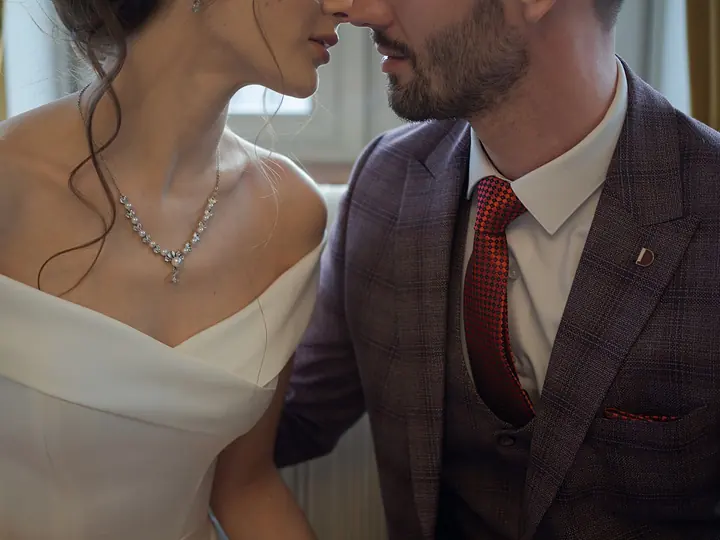 Wedding websiteWedding Website£499 one-offYour full wedding website with RSVP for every event, meal choices and a private link for each household.See Wedding Website →
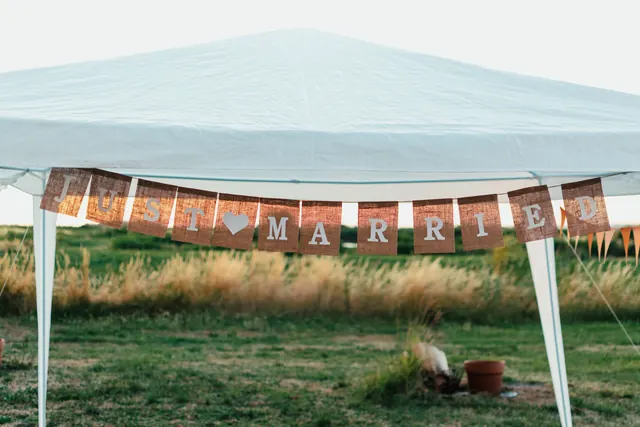 Wedding printJust Married bannersfrom £33.98Just Married banners for the car, the venue or your exit photos.Design it online →
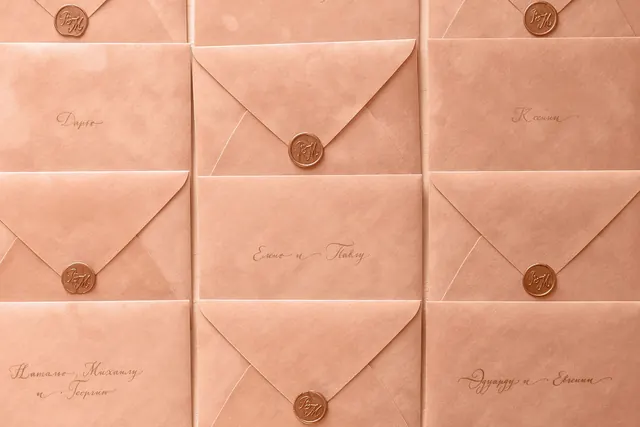 Wedding printPrinted wedding invitationsfrom £36.28Printed invitations and save the dates on quality card, with a QR code that opens your wedding website.Design it online →
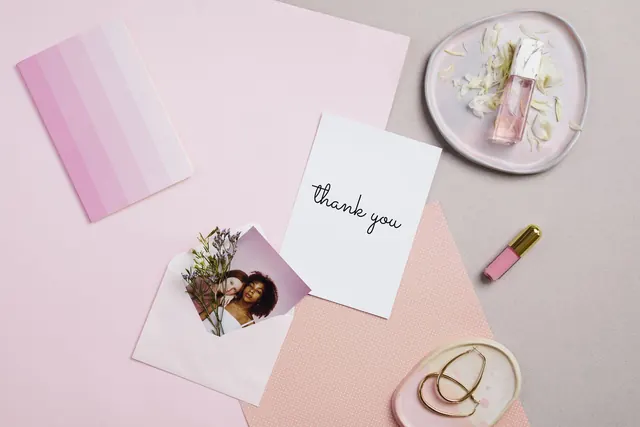 Wedding printThank-you cardsfrom £42.34Folded thank-you cards with your favourite photo from the day on the front.Design it online →
 Answers from couples and guests
No answers from readers yet. Been through this yourself? Share what worked for you.
Add your answer
Related questions
- What is another word for a group of pictures?
- How to not look awkward in group pictures?
- What is it called when you put a whole bunch of pictures together?
- What is a group photo?
- How do you take good group photos at a wedding?
- How to combine many photos together?
From other topics

 Save the date cards
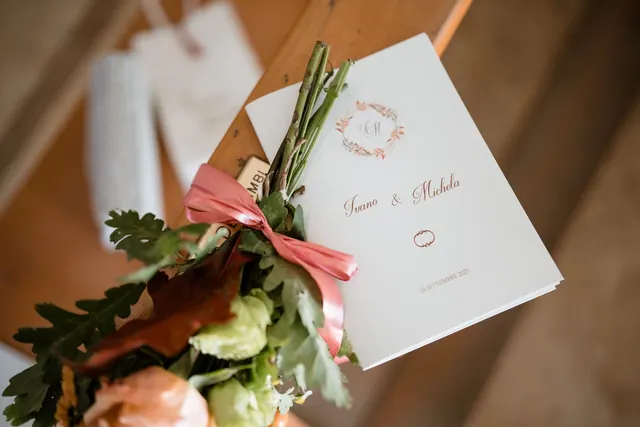 Order of service booklets
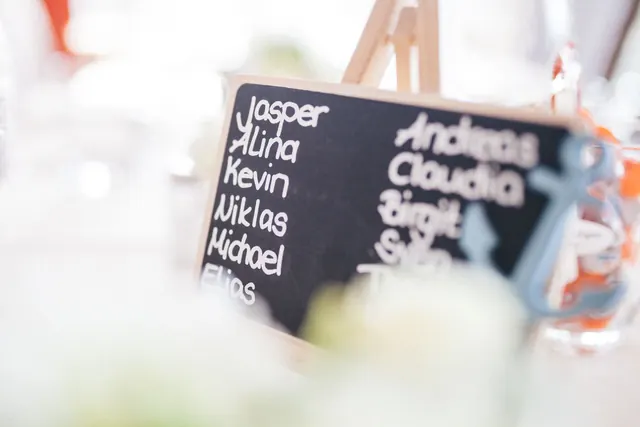 Table plan boards
 Welcome signs